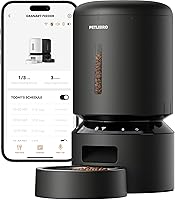
How to Program a PETLIBRO Automatic Feeder
To program a PETLIBRO automatic feeder, open the PETLIBRO app and connect the feeder to your 2.4 or 5 GHz Wi-Fi, then set each meal's time and portions and save the plan. The app sends the schedule to the feeder, and the feeder dispenses on its own from then on.
On this page (9 sections)
- What do you need before you start programming?
- How do you pair the feeder with the PETLIBRO app?
- How do you set meal times and portions?
- How do you record and schedule a meal call?
- How do you keep the schedule running when Wi-Fi drops?
- What should you do when the schedule won't save?
- Which PETLIBRO feeder fits your programming needs?
- How do you check the schedule is working?
- What should you do first when programming a PETLIBRO automatic feeder?
To program a PETLIBRO automatic feeder, open the PETLIBRO app and connect the feeder to your 2.4 or 5 GHz Wi-Fi, then set each meal's time and portions and save the plan. The app sends the schedule to the feeder, and the feeder dispenses on its own from then on.
The whole job takes a few minutes once the feeder is paired. The steps below cover the app screens in the order you'll meet them, plus what to do when a schedule won't save.
If you haven't paired the unit yet, start with how to set up a PETLIBRO automatic cat feeder and come back here for the programming part.
What do you need before you start programming?
You need the feeder plugged in with fresh backup batteries, the PETLIBRO app installed, and your Wi-Fi name and password to hand. Have the feeder's power adapter connected before you open the app.
Download the PETLIBRO app from the App Store or Google Play and create an account. The app runs on iOS and Android, and it's the control panel for every WiFi PETLIBRO model.
Keep your phone within a few feet of the feeder while you pair and program. The feeder's tank should hold dry food, because some models will run a test dispense while you set the first meal.
Write down your Wi-Fi band. The WiFi feeders here connect on both 2.4 GHz and 5 GHz, but 2.4 GHz reaches further and is the safer choice if your router sits in another room.
How do you pair the feeder with the PETLIBRO app?
Power the feeder, open the app, choose Add Device, and follow the on-screen Wi-Fi pairing. The app walks you through joining the feeder to your network.
Select the feeder model when the app asks. Enter your Wi-Fi network and password in the app, not on the feeder.
The WiFi units in this guide are programmed from the phone, so there's no keypad routine to learn.
Watch for the connection light or the app's status line to confirm the feeder is online. Once the app shows it connected, the feeder appears in your device list and you can start on meals.
If pairing stalls, move the phone and feeder closer to the router and try the 2.4 GHz band. Then return to the app and start the schedule.
How do you set meal times and portions?
Open the feeding plan, add a meal, pick a time, choose 1 to 48 portions, and save. Repeat for each meal you want in the day, up to 10 meals.
The WiFi feeders covered here schedule up to 10 meals per day with 1 to 48 portions per meal. Each portion is about 1/12 cup, so 6 portions dispenses about half a cup of dry food.
Adjust the count until the bowl looks right for your cat.
Set the first meal for a time when you can watch it run. That way you can confirm the feeder drops the right amount before you trust it on a workday.
Then space later meals to suit your cat's routine.
Use the app's feeding records to compare what was planned against what was served. The log shows the meal times and daily intake, so a missed meal shows up quickly.
For cats that share a feeder, the best automatic cat feeder for 2 cats covers the models that handle two bowls.
Can you change a meal without rebuilding the plan?
Yes. Open the single meal, change its time or portion count, and save it.
The updated meal replaces the old one and the records start logging the new times.
Deleting every meal and starting over isn't needed unless you want a clean slate. Changing one meal keeps the rest of the plan intact, which matters when you've tuned several feeding times.
Skip a meal rather than deleting it if your cat is fasting for a vet visit. A skipped meal leaves the plan in place, so the next feeding returns to normal without reprogramming.
How do you record and schedule a meal call?
Record a voice message of up to 10 seconds in the app and choose when it plays. The WiFi models here store up to 10 custom meal calls and let you adjust the volume.
Record in a quiet room and speak at normal volume. The feeder plays the clip at the feeding time you set, so your cat hears your voice when the food drops.
Set the call to play just before the dispense if you want your cat to come running.
Keep the message short and consistent. A familiar phrase works better than a long speech, and the 10-second limit means you won't have room to ramble anyway.
Check the volume after the first scheduled feeding. Some cats startle at loud playback, so try a lower setting for the first few days and raise it later if your cat ignores the call.
How do you keep the schedule running when Wi-Fi drops?
The feeder keeps dispensing the saved plan from its own memory, with the adapter and backup batteries carrying it through outages. You just lose app control until the connection returns.
The saved schedule lives on the feeder, so a router reboot or a dropped signal doesn't stop meals. That's why the plan should be complete before you rely on it.
A feeder that only has the first meal saved will only serve the first meal.
Check the app's feeding records when the network comes back. The log confirms which meals ran while you were offline.
If a meal was missed, dispense a portion manually from the app once the feeder is online again.
What should you do when the schedule won't save?
Most failed saves come from a Wi-Fi connection the feeder can't hold, so reconnect on 2.4 GHz and save the meal again. The app won't push a plan to an offline feeder.
Work through these checks in order:
- Confirm the app shows the feeder as online.
- Move the feeder closer to the router or switch to 2.4 GHz.
- Close and reopen the app, then save the meal once more.
- Power-cycle the feeder and pair it again if the status stays offline.
A schedule that saves but doesn't dispense points at the feeder rather than the app. Check the tank for food and the outlet for a blockage.
Our guide to why my automatic cat feeder is jammed walks through the clearing steps. The app also lights the feeder's indicator red and sends a phone notification when food is jammed or the tank is empty.
If the app keeps failing after a re-pair, remove the device from your account and add it fresh. That clears a stuck pairing record without changing your Wi-Fi.
Which PETLIBRO feeder fits your programming needs?
The Granary 5L WiFi feeder is the pick for most homes, because the 5L tank holds enough dry food for long stretches between refills and the app covers 10 meals a day with 1 to 48 portions each.
The twist-lock lid and rotor in the tank base help stop pets from pawing extra food out, and the stainless steel bowl is easy to rinse. The low-food sensor and jam alerts reach your phone, so you know when the plan needs attention.
Choose the 3L WiFi model if you have one cat and refill often enough that a smaller tank suits your counter space.
The 3L unit programs the same way: up to 10 meals, 1 to 48 portions per meal, and up to 10 meal calls. It's the simpler fit for a one-cat kitchen.
The 5G model pairs on both 2.4 and 5 GHz Wi-Fi and shares the twist-lock lid design, sealing strip and desiccant to keep kibble dry. Its infrared sensor stops a dispense when the outlet is blocked.
Any of the three works for a basic schedule. The 5L Granary gives you the longest gap between refills, which is the main reason it leads here.
Our guide to whether automatic feeders are bad for cats covers how scheduled feeding fits a cat's routine.
How do you check the schedule is working?
Watch the first scheduled meal dispense, then read the feeding records in the app the next morning. A plan that runs two meals without a miss is ready for a workday.
Watch the portion size land in the bowl. If the amount looks light or heavy, change the portion count in the app and save it.
A 1-portion change is about 1/12 cup, so small adjustments add up over a week.
Confirm the meal call plays at the time you set. If the clip is too quiet or too long, re-record it and save the meal again.
Review the feeding records for daily intake and meal times. The log shows whether each meal ran and how much food was served.
If a meal didn't dispense, check the tank and outlet before changing the schedule.
What should you do first when programming a PETLIBRO automatic feeder?
Pair the feeder in the app on a steady Wi-Fi band, then set one meal and save it. Start with a single meal you can watch, confirm the portion size looks right, and only then add the rest of the day's meals.
That order keeps a bad setting from running all day. Once the first meal dispenses correctly, the rest of the schedule goes in quickly.
If you feed two cats, read are automatic feeders bad for cats before you split meals between bowls.
Frequently asked questions
Do I program a PETLIBRO feeder in the app or on the feeder itself?
You program the WiFi models in the PETLIBRO app. The app stores the meal times, portions and meal calls and sends them to the feeder, so the unit keeps dispensing the saved plan even when your phone is elsewhere.
How many meals and portions can I set on a PETLIBRO feeder?
The WiFi models covered here schedule up to 10 meals per day with 1 to 48 portions per meal. Each portion is about 1/12 cup, so a 4-portion meal dispenses roughly 1/3 cup of dry food.
Why won't my PETLIBRO feeder accept the schedule?
Most failed saves come from Wi-Fi that the feeder can't join. Connect it to a 2.4 GHz network when 5 GHz won't hold, keep the phone near the feeder during pairing, and save again once the app shows the feeder as online.
What happens to the schedule if the power goes out?
The feeder runs from its adapter with battery backup, so a short outage doesn't erase your plan. Check the app's feeding records after a long outage and confirm the meal times still match what you set.
Can I change the meal time without deleting the whole schedule?
Yes. Open the meal in the app, change its time or portion count, and save.
The new plan replaces the old one for that meal, and the feeding records start logging the updated times.