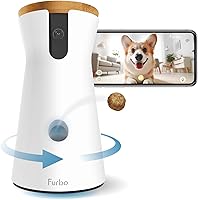
Can You Watch Furbo on a Computer?
Furbo is designed for viewing through its iOS or Android app, and the provided product details don't confirm a computer viewing option. Check Furbo's current support guidance before relying on a browser or desktop app.
On this page (7 sections)
- Can you watch Furbo on a computer?
- What can Furbo do through its app?
- Does Furbo need a subscription for live viewing?
- How do you set up Furbo for remote check-ins?
- What should you check before relying on a computer?
- Is Furbo a good fit for watching a pet while away?
- Should you choose Furbo if computer access is essential?
Furbo is designed for viewing through its iOS or Android app, and the product details available here don't confirm a computer viewing option. Check Furbo's current support guidance before relying on a browser or desktop app.
That means a computer isn't a confirmed substitute for the phone app. The camera's core features include live view, two-way audio, treat tossing, and basic sound alerts, but the listed compatible devices are iPhone and Android.
Can you watch Furbo on a computer?
The details describe Furbo viewing through its phone app, not a computer viewer. They don't confirm a browser login, desktop application, or computer-compatible live stream.
If you need a larger screen, check Furbo's current help pages or ask its support team whether your camera model supports computer viewing. Don't assume that a phone app can be mirrored or controlled from a computer; that depends on your computer, phone, and current software.
For an away-from-home setup, test the app on your phone before leaving. Confirm that live view opens, audio works, and alerts reach your device while you're away from the home Wi-Fi.
Our guide to how pet cameras work explains the basic connection between a camera, home Wi-Fi, and the app you use to check in.
What can Furbo do through its app?
The listed Furbo models offer live video, two-way audio, treat tossing, and basic sound alerts through the app. Their shared setup instructions require the Furbo app and 2.4GHz Wi-Fi.
The Furbo 360 Dog Camera includes a 1080p live view, 360-degree rotating view, barking alerts, night vision, two-way audio, and treat tossing. Furbo says its core camera features work without a subscription.
The Furbo Mini 360 Camera offers 2K QHD live view, 360-degree rotation, barking and meowing alerts, and Lite Treat Tossing for up to 10 small treats. It's a compact option if you want app-based check-ins and a smaller treat supply.
For cats, the Furbo 360 Cat Camera includes live view, meowing alerts, two-way audio, treat tossing, and a feather wand toy. It also uses the Furbo app for setup and remote check-ins.
All three models are listed for iPhone and Android, with Wi-Fi connectivity. Their product details don't confirm computer viewing.
Does Furbo need a subscription for live viewing?
No subscription is required for the basic live view and camera features described for these models. Furbo Nanny is an optional service for premium features, including AI-powered alerts and video history.
New users get a 14-day Furbo Nanny trial, according to the product details. After the trial, the core features continue to work without a subscription, while the premium features require a paid plan.
Before you buy, decide whether basic viewing is enough or whether you want the additional alerts and history. Our guide to what a Furbo subscription includes explains which features are described as core and which are part of Furbo Nanny.
How do you set up Furbo for remote check-ins?
Set up the camera in the Furbo app and connect it to a 2.4GHz Wi-Fi network before you leave. The setup details say 5GHz isn't supported.
Plug in the camera, install the app, create an account, and follow the connection steps. The included USB cable doesn't come with a USB power adapter, so plan for a compatible adapter.
Once setup is complete, use the app away from home to confirm that you can see and hear your pet. Try the camera in the room where you'll leave it, since Wi-Fi coverage can vary by location.
For a fuller overview of what a camera can and can't show you, see what a pet camera is. A camera offers remote observation, but it doesn't replace arranging appropriate care for your pet.
What should you check before relying on a computer?
Treat computer viewing as unconfirmed until Furbo verifies it for your model. Check current support information for any browser or desktop option, and test the confirmed method before you depend on it.
If you need a larger display for occasional viewing, look for a supported method from Furbo rather than assuming that an unofficial workaround will remain available. Keep the phone app set up as your known viewing method, since the listed models are designed to work with iPhone and Android.
Also check what you need from the camera while away. Basic live viewing and sound alerts may be enough for a quick check-in, while video history and advanced AI alerts fall under the optional Furbo Nanny features.
Is Furbo a good fit for watching a pet while away?
Furbo fits phone-based check-ins when you want live view and features such as two-way audio or treat tossing. It isn't a confirmed choice for someone who specifically needs to watch through a computer.
Choose the Furbo 360 Dog Camera for dog-focused features and a full-size treat supply. Choose the Mini 360 if its compact size and smaller treat capacity suit your setup, or the Cat Camera if you want its cat-focused alerts and feather wand toy.
If your plans include leaving a cat at home, review how long a cat can be left alone and arrange care based on your cat's needs. A camera can help you check in, but it can't provide food, water, or in-person attention by itself.
Should you choose Furbo if computer access is essential?
Choose Furbo if phone-app viewing works for you; verify computer support first if a desktop screen is essential. The listed models describe app use on iPhone and Android and don't confirm a computer viewer.
For a phone-first setup, compare the models by pet, treat capacity, and the alerts you want. For computer viewing, ask Furbo about current support for your exact camera before deciding.
Next, use our guide to how pet cameras work to compare the basic setup and viewing role of a pet camera.
Frequently asked questions
Can you watch Furbo on a computer?
Furbo's listed controls are through its iOS or Android app, and the product details here don't confirm a browser or desktop viewer. Check Furbo's current support information for your camera model before planning to watch from a computer; app availability and features can change.
Do you need a Furbo subscription to watch live video?
No subscription is required for the core live view, two-way audio, treat tossing, and basic sound alerts described for these models. Furbo Nanny adds premium features such as AI-powered alerts and video history, and the included 14-day trial ends unless you subscribe.
Can you talk to your pet through Furbo?
Yes, the listed Furbo models include two-way audio through the app, so you can hear and speak to your pet. You'll need the camera set up and connected, and your phone will need access to the app and an internet connection.
What Wi-Fi does Furbo need?
These Furbo cameras require a 2.4GHz Wi-Fi network for setup; 5GHz isn't supported in the supplied setup details. Check that your home network offers 2.4GHz coverage where you plan to place the camera, and use the Furbo app to connect it.